A Windows messaging client is more than a chat window. Once installed, it becomes part of the desktop environment, handling notifications, local files, account sessions, startup behavior, and background activity.
The choice between a browser session, a Microsoft Store app, and a standalone desktop client affects how reliably the software starts, updates, stores downloads, and stays available during a workday.
A weak setup often creates avoidable problems: the wrong package is installed, notifications become noisy, received files are scattered across folders, or an old session remains active on a device that is no longer used.
For a dependable Windows workflow, treat download verification, installation, language settings, notifications, file handling, session security, and updates as one configuration process.
The sections below show how to choose the right access method, verify and install the client, configure Chinese-language use when needed, and maintain a practical desktop setup over time.
Choose the Right Windows Access Method
The first decision is not which button to click. It is which type of access best fits the way the computer will be used.
Messaging platforms commonly provide several options.
Browser access
A web version can be useful when:
- Software installation is restricted
- The user is working on a temporary PC
- Messaging is only needed occasionally
- The browser is already central to the workflow
The disadvantage is that communication becomes another browser tab, which can be easy to close, lose, or mix with unrelated work.
Dedicated desktop client
A desktop client is generally better suited to users who need:
- Persistent notifications
- Frequent conversations
- File downloads
- Multi-monitor workflows
- Keyboard-heavy communication
- Long-running sessions
For users who want persistent background notifications, local file handling, and a full desktop workflow, searches such as telegram for windows usually reflect intent to use a native Windows client rather than a temporary browser tab.
Microsoft Store edition
Store-based applications can simplify installation and updating in some Windows environments.
However, organizations should still verify whether the Store edition matches internal deployment and support requirements.
Choose the access method that matches the device, update policy, and amount of time the user will spend in the application.
Verify Compatibility and Install the Windows Client Safely
Before downloading the client, verify that the PC meets the application requirements.
Important checks include:
- Windows 10 or Windows 11
- 64-bit architecture
- Available disk space
- Required permissions
- Supported installation method
- Update behavior
- Network restrictions
Most current Windows PCs meet the basic requirements for a desktop messaging client, but compatibility still matters when the same application will be deployed across multiple devices.
A team should ideally document one supported configuration.
For example:
Windows 11 64-bit, standalone desktop installer, automatic updates enabled.
Standardizing one supported baseline reduces configuration drift and gives support teams a predictable environment to troubleshoot.
Verify the Download Source
Prefer a direct, traceable distribution path over random mirrors, software directories, or pages that insert unrelated download utilities between the user and the installer.
Before downloading:
1. Check the domain.
2. Confirm that the page matches the intended application.
3. Review the Windows version offered.
4. Avoid unnecessary download managers.
5. Watch for advertising buttons.
6. Confirm that the installer filename looks appropriate.
If the download path becomes difficult to explain, stop and verify the domain, package, and final file before continuing.
If the download path becomes confusing, stop and verify it again.
Because a desktop messaging client can hold private conversations, account sessions, and received files, its installer deserves the same source verification as other business-critical Windows software.
Inspect the Installer Before Running It
Once the installer has been downloaded, do not open it immediately.
Windows provides useful information through file properties.
Right-click the installer and review:
- Product name
- File description
- Version
- Publisher
- Digital signature
- File size
The product name, publisher, version, and signature should be consistent with the application the user intended to download.
If the installer identifies an unrelated company or product, investigate before proceeding.
Use Windows Security as a Verification Layer
Users should scan the installer before execution.
Windows Security or an organization-managed endpoint-security platform can provide an additional check before the installer is executed.
Windows SmartScreen may also display warnings for unfamiliar applications.
Treat unexpected warnings as prompts to verify the source and publisher rather than messages to dismiss automatically.
Instead, verify:
- Publisher
- Download source
- Digital signature
- Version
- Reason for installation
The objective is to understand what is being installed and whether the available signals are consistent.
Review Installation Options Instead of Clicking Through
After the file has been verified, follow the installation process carefully.
Avoid the habit of clicking “Next” without reading the screens.
Look for:
- Installation location
- Startup settings
- Optional components
- Additional software
- Desktop shortcut options
- Update preferences
A straightforward messaging-client installer should not unexpectedly require browser extensions, system cleaners, download managers, or unrelated utilities.
If additional software appears unexpectedly, stop and review the package.
Configure the Desktop Client for Daily Use
Successful installation only confirms that the client can run. The next step is to align it with the user’s actual Windows workflow.
A Windows messaging client should be configured according to the user’s actual workflow.
Important settings include:
- Interface language
- Notifications
- Download folder
- Automatic media downloads
- Startup behavior
- Update preferences
- Active sessions
- Privacy controls
Default settings are a starting point, not a guarantee that notifications, storage, privacy, and startup behavior fit the way the PC is used.
Configure Chinese-Language Use When Needed
Regional terminology and language preference can change how users search for desktop messaging software, even when the underlying Windows setup is the same.
Chinese-speaking users may also encounter the term 纸飞机电脑版 when looking for Windows-specific guidance covering desktop installation, language settings, downloads, and notifications.
Regardless of the regional term used, the workflow should remain consistent:
1. Select the correct Windows client.
2. Install the verified desktop edition.
3. Configure the preferred interface language.
4. Review file and notification settings.
5. Confirm that the application behaves correctly.
Complete and verify the Windows installation first; then adjust localization, input, and display preferences as a separate configuration step.
Set the Interface Language
A multilingual desktop environment is easier to use when users can understand important controls.
Language affects settings related to:
- Privacy
- Notifications
- Downloads
- Sessions
- Storage
- Group management
A multilingual user may read messages in several languages while still preferring Chinese menus for privacy, download, session, and storage settings.
After selecting the preferred language, verify that:
- Menus display correctly
- Chinese characters render properly
- Notifications use expected text
- Search works normally
- File names display correctly
If Chinese characters render incorrectly, check Windows fonts and regional settings before assuming the desktop client itself is damaged.
Configure Windows Input Methods
Interface language and keyboard input are separate.
Users who regularly type Chinese should ensure that the required Windows input method is available.
This may involve:
- Adding the preferred Chinese keyboard
- Selecting Traditional or Simplified input
- Configuring keyboard shortcuts
- Testing punctuation
- Switching between English and Chinese efficiently
For multilingual users, fast and reliable switching between English and Chinese can have a larger day-to-day productivity impact than the interface language alone.
Tune Notifications, Privacy, and File Handling
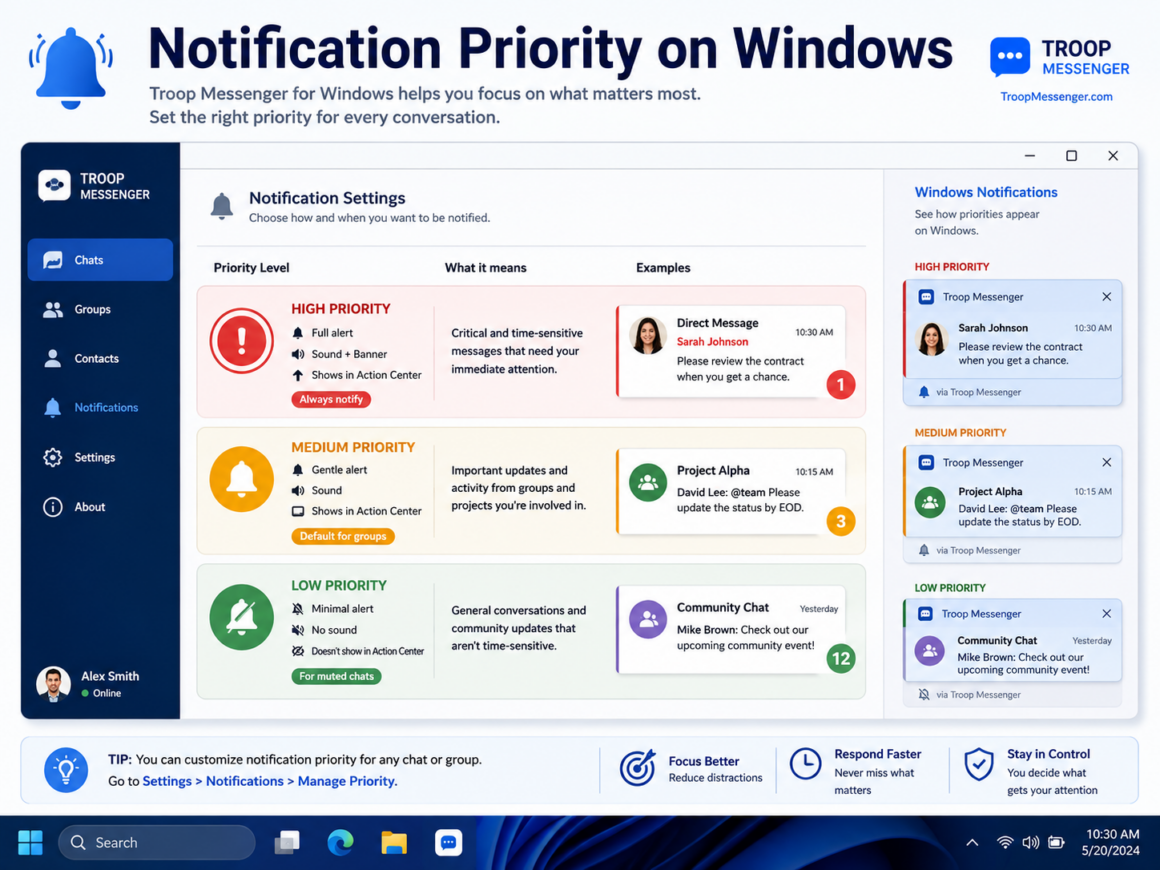
Persistent notifications are a major advantage of a Windows desktop client, but they should be configured by conversation priority rather than left at maximum volume for every chat.
They can also become a major distraction.
A useful notification setup separates conversations by priority.
Direct messages
Keep alerts enabled when fast responses are important.
Active project groups
Allow notifications for conversations connected to current work.
General groups
Reduce or mute alerts.
Announcement channels
Use visual notifications without sound when appropriate.
Low-priority communities
Mute and review manually.
Also verify Windows-level notification permissions; an application can be configured correctly while the operating system still blocks or limits its alerts.
If an alert is missing, check both the client and Windows notification settings before troubleshooting the network or reinstalling the application.
Protect Message Privacy on Shared Screens
Windows notifications can expose more information than users expect.
A notification may reveal:
- Sender name
- Group name
- Message content
- File name
This becomes a privacy issue in:
- Shared offices
- Coworking spaces
- Presentations
- Screen-sharing calls
- Public workplaces
Disabling message previews while keeping a basic alert can preserve awareness without exposing conversation content during screen sharing or in shared workspaces.
For presentations or sensitive screen-sharing sessions, temporary focus settings can provide an additional layer of privacy when appropriate.
Use a Dedicated Download Folder
Desktop messaging often involves frequent file exchange.
Users may receive:
- PDFs
- Images
- Documents
- Spreadsheets
- Archives
- Presentations
A dedicated messaging folder makes received files easier to find, scan, clean up, and move into long-term storage.
For example:
DownloadsMessaging
or:
DocumentsMessaging Files
This provides several benefits:
- Easier file discovery
- Cleaner browser download folders
- Faster security scanning
- Easier cleanup
- More predictable storage
Move important documents to an approved cloud, project, or network location instead of allowing the messaging download folder to become a permanent archive.
Schedule occasional cleanup so cached attachments do not accumulate indefinitely on the local PC.
Control Automatic Media and File Downloads
Automatically downloading every file may not be necessary.
Users should decide whether the client should automatically save:
- Images
- Documents
- Videos
- Large attachments
- Archives
Selective automatic downloading can reduce storage growth and limit the number of unnecessary files written to the local PC.
Executable files, scripts, and unfamiliar archives deserve additional scrutiny even when they arrive through a legitimate conversation.
Organize the Windows Messaging Workflow
A desktop client becomes more useful when conversations are organized.
Good practices include:
- Pinning important chats
- Archiving inactive groups
- Using folders where supported
- Naming groups consistently
- Separating work and community discussions
- Removing obsolete conversations
Without a simple organization system, users in many groups can spend more time locating the right conversation than responding to it.
A simple folder structure might include:
- Work
- Projects
- Announcements
- Communities
- Personal
The exact categories matter less than using them consistently across the desktop workflow.
Use Desktop Search Before Repeating Work
Desktop search is especially useful because users have access to a full keyboard and larger display.
Search can help locate:
- Previous messages
- Shared files
- Links
- Project names
- Dates
- Technical instructions
For teams, searching previous conversations before repeating a question can reduce duplicated work and make older decisions easier to recover.
This improves productivity and reduces unnecessary messaging.
Decide Whether the Client Should Start With Windows
Messaging clients can often launch automatically when Windows starts.
Automatic startup makes sense when messaging is essential throughout the workday.
It may not be necessary when communication is occasional.
Users can decide based on:
- Importance of real-time messages
- PC startup performance
- Notification requirements
- Focus preferences
Windows Startup Apps settings provide a second place to verify which applications launch automatically and to identify unexpected startup entries.
Users should also check for unexpected startup programs after installation.
Maintain Sessions, Updates, and Reinstallation
Desktop clients may remain logged in for long periods.
Users should periodically review active account sessions.
This is particularly important after:
- Replacing a PC
- Reinstalling Windows
- Using remote desktop
- Accessing a temporary computer
- Losing access to an old workstation
Unknown or unused sessions should be closed.
Periodic session review is a simple account-security habit, especially after hardware replacement, Windows reinstallation, or temporary-device use.
Keep the Client on a Trusted Update Path
Updates may contain:
- Security patches
- Windows compatibility fixes
- Performance improvements
- New features
- Interface changes
Updates should arrive through a predictable mechanism that users and administrators can recognize and support.
Preferred methods include:
- Built-in updater
- Microsoft Store
- Verified download source
- Managed deployment system
Avoid searching unrelated software sites each time a new version is needed; use the same trusted distribution path whenever possible.
For larger organizations, testing major updates before broad deployment can reduce unexpected compatibility problems.
Reinstall Only When It Solves the Right Problem
Reinstallation can help when:
- Application files are corrupted
- An update fails
- The client repeatedly crashes
- Windows has been rebuilt
- The PC has been replaced
Reinstallation is useful for damaged application files or failed updates, but it should not be the default response to every connection, notification, or settings issue.
Before reinstalling:
1. Restart the application.
2. Restart Windows.
3. Check for updates.
4. Review security software.
5. Confirm network connectivity.
6. Review application settings.
If a clean reinstall is required, download a current installer from the approved source instead of automatically reusing an old package.
Build a Repeatable Desktop Baseline
For organizations, the best long-term approach is standardization.
A simple internal setup document can specify:
- Approved Windows edition
- Download source
- Expected publisher
- Installation process
- Interface language
- Notification defaults
- Download folder
- Startup settings
- Update method
A documented baseline reduces support complexity while still leaving room for minor personal preferences such as notification volume or chat organization.
Users can still personalize secondary settings, but the supported baseline remains consistent across the organization.
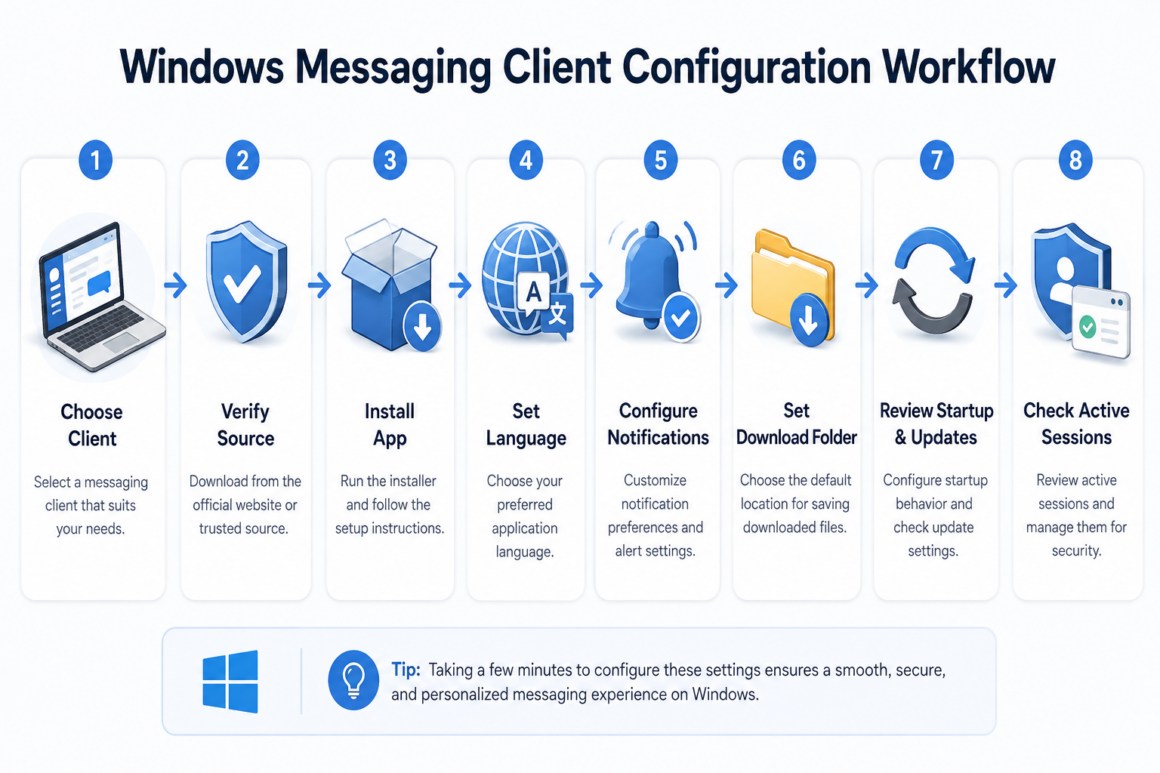
Windows Messaging Client Setup Checklist
Before installation
- Confirm the correct desktop edition.
- Check Windows compatibility.
- Verify the download source.
- Inspect the installer.
- Scan the file.
Installation
- Review each installer screen.
- Avoid unrelated bundled software.
- Confirm the installed version.
- Launch the application.
Desktop setup
- Configure language.
- Set notification preferences.
- Choose a download folder.
- Review automatic downloads.
- Configure startup behavior.
Security
- Review active sessions.
- Protect notification previews.
- Scan suspicious received files.
- Keep the client updated.
Productivity
- Organize important conversations.
- Use folders where available.
- Pin high-priority chats.
- Use search before repeating questions.
- Move important documents into permanent storage.
Final Takeaway
A useful Windows messaging setup is not defined only by whether messages can be sent and received. It should also fit the device, security model, file workflow, notification needs, and language preferences of the user.
The strongest desktop configuration combines a verified installation path with deliberate settings for privacy, downloads, startup behavior, sessions, and updates.
Users need to consider:
- Which edition they install
- Where the installer comes from
- How the interface is configured
- Where files are stored
- How notifications behave
- How sessions are protected
- How updates are delivered
When those decisions are made deliberately, the desktop client becomes faster to use, easier to support, and less likely to create notification, storage, or account-management problems.
Use a simple sequence: choose the correct Windows edition, verify the source, install carefully, configure the client for the real workflow, and keep it on a trusted update path.