Downloading a Windows messaging app takes only a few clicks; verifying the path from website to installer is the part that deserves deliberate attention.
Search results can surface product pages, regional guides, software directories, mirrors, advertisements, and third-party tutorials that appear to offer the same desktop package but use very different distribution paths.
For software that may handle private conversations, persistent sessions, downloaded files, and startup activity, verification should happen before the executable is opened, not after a problem appears.
This guide focuses on the practical checks that matter most: domain and redirect review, Windows package selection, installer metadata, digital signatures, security warnings, localization, updates, and repeatable deployment.
Why Download Verification Matters on Windows
Desktop applications operate directly inside the Windows environment.
Unlike a normal website, installed software can interact with:
- Local files
- Notifications
- Network connections
- Startup behavior
- Account sessions
- Download folders
- System permissions
Because the installed application operates inside the Windows environment, the source and identity of the installer are part of the security and support decision.
A user should understand:
1. Which website provides the software information
2. Where the actual installer is hosted
3. Who publishes the executable
4. Whether the file is digitally signed
5. How future updates will be delivered
When the domain, host, publisher, signature, or update path is unclear, the installation becomes harder to trust and harder to troubleshoot later.
For organizations, using one documented source and package also reduces variation between employee devices.
Verify the Website and Download Path
Start verification with the page and domain before focusing on the download button itself.
Users should not rely only on:
- Logos
- Familiar colors
- Page titles
- Large download buttons
- Claims such as “official” or “latest version”
Visual branding is easy to copy, so inspect the domain and distribution path rather than relying on page design alone.
Look for:
- Correct spelling
- Consistent product information
- Normal site navigation
- Clear download sections
- No unexplained redirects
- No unrelated software promotions
For searches such as telegram 官方下载, the useful question is whether the destination provides a coherent Windows download path and whether the final installer can be matched to the expected application and publisher.
The domain, page purpose, download destination, and final installer should form a path that is easy to explain.
Treat Search Results as Discovery, Not Proof
Search engines are useful for discovering software information, but ranking position or a familiar-looking result is not proof that a specific installer is the right one.
Results may include:
- Product pages
- Regional information sites
- Reviews
- Software directories
- Paid advertisements
- Tutorials
- News articles
- Community resources
Each result type can be useful, but it may play a different role in the download journey.
The user should verify the page after opening it.
Ask:
- Does the page explain the Windows edition clearly?
- Does the download button point where expected?
- Is the publisher identifiable?
- Are there multiple unrelated download options?
- Does the site redirect through advertising services?
Keep discovery and verification separate: find candidate information first, then validate the page, file, and publisher independently.
Choose the Correct Windows Package
Before downloading, identify which Windows edition and distribution method the device actually requires.
Messaging platforms may offer several options:
- Standard Windows installer
- Microsoft Store edition
- Portable desktop version
- Browser-based access
- Different packages for different architectures
The right option depends on device ownership, administrative policy, installation permissions, and update expectations.
For example, a permanent workstation may benefit from a normal desktop installation, while a restricted company PC may require an approved Store version or managed deployment.
Before selecting the package, confirm:
- Windows 10 or Windows 11 compatibility
- 64-bit requirements
- Installation permissions
- Available disk space
- Update behavior
- Whether the package installs per user or system-wide
Correct package selection prevents users from misdiagnosing architecture, permission, or update-policy issues as a bad download.
Avoid Unnecessary Download Managers
Some third-party websites require users to download a separate utility before receiving the actual software.
These download managers may:
- Add extra steps
- Offer unrelated programs
- Change browser settings
- Install additional components
- Complicate software verification
For a desktop messaging app, a direct and understandable path to the installer is usually easier to verify than an extra download utility.
If a normal Windows installer is expected but a separate “download assistant” appears instead, stop and review the distribution path.
The user should know exactly which file is being installed and why.
Inspect the Download Button Destination
Before clicking a download button, users can often inspect where it leads.
A legitimate workflow should not require a long chain of unrelated domains, pop-ups, or unexplained utilities before the final Windows file appears.
Be cautious if:
- The button opens an unfamiliar website
- Several redirects occur
- Pop-ups appear
- Browser extensions are offered
- A different product begins downloading
- The final filename is unrelated to the expected application
The path from download page to installer should remain understandable at every step.
Handle Chinese-Language Download Intent Carefully
Chinese-speaking Windows users may be searching for both the desktop package and a localized interface, but those are separate requirements.
That combined need often appears in searches such as telegram 中文版下载, where users may be looking for both a Windows package and guidance on obtaining a Chinese-language interface.
The important distinction is that “Chinese version” can refer to different things:
- A desktop client that supports Chinese interface settings
- A Chinese-language guide explaining installation
- A localized download page
- Regional documentation
- A modified unofficial installer
A localized guide, localized download page, and modified executable are not equivalent.
Be cautious when a site claims that a special modified executable is required solely to obtain a Chinese interface.
When language can be configured inside the standard desktop client, verifying the normal installer first keeps package integrity and localization as separate questions.
Separate Download Verification, Installation, and Localization
A clean Windows workflow is easier to troubleshoot when it is divided into three stages.
Stage 1: Download verification
Confirm:
- Domain
- Package type
- Publisher
- Windows compatibility
- File source
Stage 2: Installation
Confirm:
- Installer integrity
- Security scan
- Permissions
- Installation behavior
- Version
Stage 3: Localization
Configure:
- Interface language
- Chinese character rendering
- Input method
- Regional preferences
This separation helps isolate problems: installation failures point to the package or Windows environment, while a working client with the wrong language points to configuration.
If the software fails to install, localization is probably not the cause. If installation succeeds but the interface remains in English, the issue is likely configuration rather than software distribution.
Inspect and Validate the Installer
After the Windows package is downloaded, examine the file before execution.
The filename should reasonably match the expected application.
Warning signs include:
- Random strings of characters
- Unrelated company names
- “Downloader” from an unknown publisher
- Suspicious file extensions
- Unclear version labels
A strange filename is not conclusive by itself, but it is a reason to verify the page, host, and publisher again.
Confirm the File Type
Windows software is commonly distributed as:
- .exe
- .msi
Portable applications may use archives, but this should be expected and documented.
If a user expects a standard installer but receives:
- A script
- A browser extension
- An unrelated archive
- If the extension or packaging method is unexpected, do not proceed until the reason is understood.
Only continue once the file type and packaging method match the documented download path or another verified explanation.
Review File Properties in Windows
Windows exposes useful metadata through the file properties panel.
To inspect an installer:
1. Right-click the file.
2. Select Properties.
3. Review the General section.
4. Open the Details tab.
5. Check whether Digital Signatures is available.
Useful fields include:
- File description
- Product name
- Company name
- File version
- These properties should be consistent with the application and package the user intended to obtain.
If the metadata does not match expectations, compare the file against the download page and publisher information before proceeding.
Check the Digital Signature
A digital signature can help users verify the publisher associated with the installer.
If available:
1. Open the file properties.
2. Select Digital Signatures.
3. Review the signer.
4. Open signature details.
5. Confirm that Windows reports the signature as valid.
For managed deployments, document the expected publisher so future installers can be compared against a known baseline.
A valid signature is useful evidence, but it should be considered alongside the download source, package identity, and other verification steps.
Scan the Installer Before Execution
Users should scan the file before opening it.
Windows Security or another managed endpoint-security tool can provide an additional check before the file is opened.
A simple workflow is:
1. Download the installer.
2. Verify the filename and source.
3. Scan the file.
4. Review any warning.
5. Proceed only when the package matches expectations.
This check is quick and adds another independent signal before installation.
Treat SmartScreen Warnings as a Verification Prompt
Windows SmartScreen may warn about an unfamiliar or low-reputation application.
Treat that warning as a reason to stop and verify the source, publisher, signature, and expected file before deciding whether to continue.
Review:
- Publisher
- Source
- Digital signature
- File version
- Reason for installation
If the warning is unexpected and the publisher cannot be verified, do not proceed until the discrepancy is resolved.
In managed environments, unusual security warnings should be escalated instead of normalized as routine obstacles.
Read Installation Prompts Carefully
Installation screens can reveal bundled software, changed browser settings, or other actions that were not apparent on the download page.
During installation, watch for:
- Preselected optional software
- Browser extensions
- Homepage changes
- Search-provider changes
- Additional utilities
- Startup tools
A messaging-app installer should not unexpectedly modify unrelated parts of the Windows environment.
If it does, review the installer and source again.
Verify the Installed Application
After installation, confirm that the expected application is actually present.
Check:
- Application name
- Installed version
- Publisher
- Launch behavior
- Startup entry
- Update settings
Windows Settings provides a second place to confirm the installed application, version, and publisher after setup completes.
Unexpected additional software may indicate that the package included bundled components and should trigger a review of the source.
Configure the Chinese Interface After Installation
If Chinese-language use is required, configure it after the base Windows application has been installed and verified.
A typical process may include:
1. Open application settings.
2. Locate language controls.
3. Select Traditional or Simplified Chinese.
4. Restart if needed.
5. Verify that menus display correctly.
This keeps localization troubleshooting separate from questions about where the executable came from.
If installation is correct, language issues can then be investigated without replacing the package unnecessarily.
Test Chinese Character Rendering
After changing the interface language, verify:
- Menus
- Notifications
- File names
- Search results
- Group names
- Usernames
- Settings text
If some characters render incorrectly, review Windows fonts, language components, and regional settings before downloading another installer.
A display problem is not, by itself, evidence that a different executable is required.
Configure the Windows Input Method
A Chinese-language interface does not automatically configure Chinese typing.
Users who regularly communicate in Chinese should review Windows input settings.
Useful steps include:
- Adding the required keyboard
- Selecting the desired Chinese input method
- Configuring Traditional or Simplified input
- Testing language-switch shortcuts
- Verifying punctuation
Input settings improve day-to-day Chinese communication without changing the underlying application package.
Control Downloads and Updates
Messaging applications frequently handle attachments.
A dedicated folder such as:
DownloadsMessaging
A dedicated folder keeps received files separate from browser downloads and makes cleanup, scanning, and troubleshooting more predictable.
Benefits include:
- Easier cleanup
- Faster security scanning
- Clear separation from browser downloads
- Better troubleshooting
- More predictable storage
Move important files into their proper long-term storage location instead of relying on the messaging download folder as an archive.
Review Automatic Download Settings
Users should decide whether the desktop client should automatically download:
- Images
- Documents
- Videos
- Archives
- Large files
Automatically saving every attachment is not necessary for most Windows workflows.
A selective policy reduces storage growth and limits the number of unnecessary files written to the PC.
Keep Updates on a Trusted Path
Verification continues after installation because future versions must arrive through a recognizable update channel.
Updates should come through:
- Built-in update mechanisms
- Approved Windows distribution
- Verified download sources
- Organization-managed systems
Avoid searching random software directories whenever a newer version is needed.
If a full installer is required again, repeat the same source, publisher, and file checks.
Do Not Reuse Old Installers Indefinitely
An installer downloaded months ago may no longer be the best choice.
It may be:
- Outdated
- Missing security fixes
- Unsupported
- Incompatible with newer Windows updates
For a clean reinstall, obtain the current approved package rather than assuming an older saved installer is still appropriate.
Treat each fresh installation as a new verification event.
Create a Repeatable Deployment Process
Organizations can simplify future deployment by recording:
- Application name
- Approved source
- Windows edition
- Expected publisher
- Current version
- Download date
- Update method
A short approved-download record gives support teams a reference for later installations and reduces repeated research.
When a new package appears, it can be compared against the documented source, publisher, Windows edition, and update method.
Use Pilot Deployment for Multiple PCs
If the client will be installed across several Windows computers, test it first on a small group.
A pilot deployment can reveal:
- Compatibility issues
- Installation failures
- Security-software conflicts
- Language-setting problems
- Notification changes
- Update behavior
After the pilot confirms compatibility, language behavior, security tooling, and update behavior, the same baseline can be deployed more broadly.
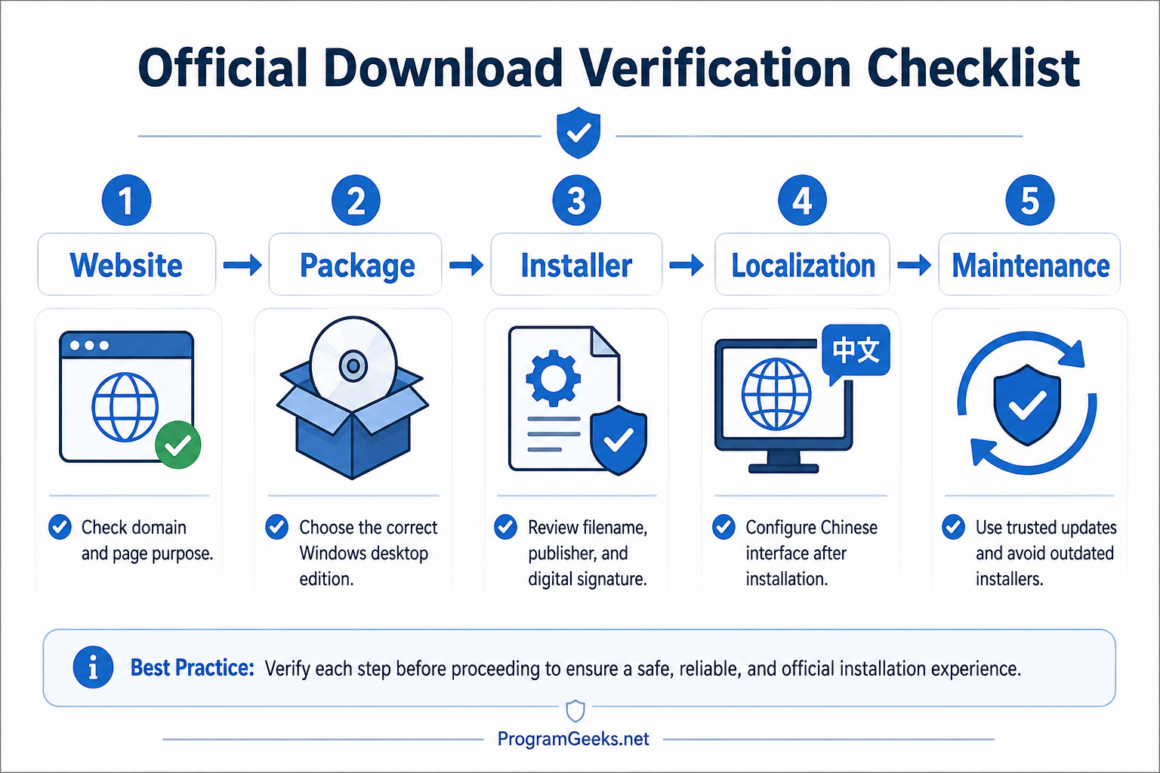
Windows Messaging App Download Verification Checklist
Website
- Check the domain spelling.
- Confirm the page purpose.
- Avoid unexplained redirects.
- Review download-button destinations.
- Ignore misleading advertisements.
Windows package
- Select the correct desktop edition.
- Confirm Windows compatibility.
- Verify architecture.
- Review version information.
Installer
- Check the filename.
- Confirm the file type.
- Review file properties.
- Check the publisher.
- Inspect the digital signature.
- Scan with Windows Security.
Installation
- Read every setup screen.
- Avoid bundled applications.
- Review administrator prompts.
- Verify the installed application afterward.
Localization
- Configure Chinese interface settings separately.
- Check character rendering.
- Configure Windows input methods.
Maintenance
- Use trusted update sources.
- Avoid outdated installers.
- Review application version periodically.
- Repeat verification during a clean reinstall.
Final Takeaway
No single badge, page label, filename, or security signal proves that a Windows messaging download is appropriate on its own.
A safe Windows installation process combines several checks:
- Domain verification
- Correct package selection
- Installer inspection
- Publisher validation
- Security scanning
- Careful installation
- Trusted updates
Chinese-language requirements should be handled as a configuration question after the Windows package and publisher have been verified.
A reliable workflow is easy to remember:
Verify the page and download path. Choose the correct Windows package. Inspect the installer. Review warnings. Install carefully. Localize afterward. Keep updates on the same trusted path.
That sequence makes the desktop application easier to deploy, easier to support, and less likely to introduce avoidable installation or maintenance problems.