.Image Source: https://unsplash.com/photos/a-person-sitting-at-a-desk-with-a-laptop-and-a-mouse-Zi-DtaEM-gg
Roughly 34.6 million people in the US teleworked in August 2025, and over half the global workforce now does some remote work. Yet most teams bolt on remote access in a hurry, leaving gaps in security and onboarding. A proper setup pays back fast: less travel, fewer support tickets, and tighter control over who touches what. This guide walks through rolling out remote access for a team.
Key Takeaways
- Pick the access method (VPN, RDP, cloud, or remote desktop software) before you touch any tool.
- Enforce multi-factor authentication on every remote login, since MFA blocks over 99.2% of account takeover attacks.
- Map users to roles first, then assign machines and permissions, not the other way around.
- Document the rollout in a runbook so new hires can self-onboard without IT chasing them.
- Audit access quarterly and remove dormant accounts to shrink your attack surface.
Why Getting Remote Access Right Matters Now
Remote access has shifted from a perk to plumbing. Secure remote access for teams lets staff reach office computers and licensed software from anywhere without copying sensitive files to personal laptops.
The financial case is real too. Global Workplace Analytics estimates a typical employer saves around $11,000 per year for every employee who works remotely half the time, and a Stanford hybrid work study published in Nature found hybrid teams matched in-office productivity while cutting turnover by 33%.
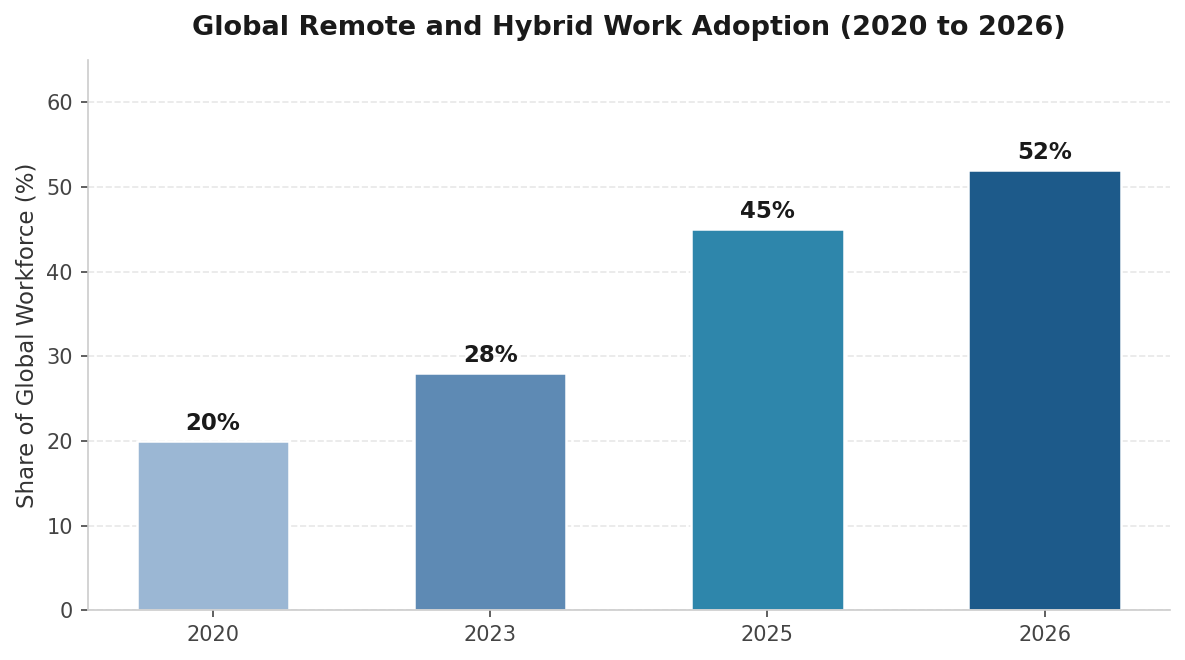
Source: Yomly Remote Work Statistics 2026, based on aggregated global workforce data.
|
Quick Stat About 75% of workers with remote-capable jobs work from home at least some of the time, up from 5 to 6% before the pandemic. (Source: Bureau of Labor Statistics, 2025.) |
Step 1: Choose the Right Remote Access Method
Before picking a vendor, decide what kind of access your team needs. The four mainstream options trade off security, performance, and effort differently.
|
Method |
Best For |
Strengths |
Watch-Outs |
|
VPN |
Reaching internal apps on a private network |
Encrypts traffic, well-understood |
Slower over long distances, complex to maintain |
|
RDP / Remote Desktop Protocol |
Native Windows access on-network |
Built into Windows, no extra licence |
Risky if exposed to the internet, needs strong hardening |
|
Cloud-based file access |
Read-only documents and shared drives |
Simple, browser-friendly |
Limited app control, no full system access |
|
Remote desktop software |
Full screen control of office machines |
Strong encryption, low-friction setup, cross-platform |
Subscription cost per user or device |
If most of your team needs to work as if sitting at their office computer, dedicated remote desktop software is usually the cleanest fit.
|
Pro Tip Don’t try to standardise on one method for every job. Sales, finance, and design teams have different needs. A mixed setup is often more secure than one VPN. |
Step 2: Inventory Users, Devices, and Apps
Map the territory before drawing roads. List every person who needs remote access, their connecting device, the machine or app they need, and the data sensitivity level.
This inventory becomes your access matrix. Skip it and you will either over-provision or chase constant one-off requests.
Step 3: Lock Down Security From Day One
Security cannot be a phase two project. Unsecured remote access is one of the easiest paths into a network, and attackers automate the search for weak endpoints. A small set of controls handles most of the risk. CISA guidance on multifactor authentication puts MFA at the top of every priority list for remote access.
|
Microsoft research shows that MFA blocks more than 99.2% of account compromise attacks, and over 99.99% of MFA-enabled accounts remained protected during a large-scale investigation. |
Non-Negotiable Controls
- End-to-end encryption: Sessions should use AES-256 or equivalent.
- Multi-factor authentication: Apply it to every remote login. App-based authenticators beat SMS codes.
- Role-based access control: Give each user access only to the systems they need, scoped by job.
- Session logging: Capture who connected, when, from where, and for how long.
- Auto-timeout: End sessions after a short period of inactivity.
- Device verification: Bind sessions to known devices or require one-time approval for new ones.
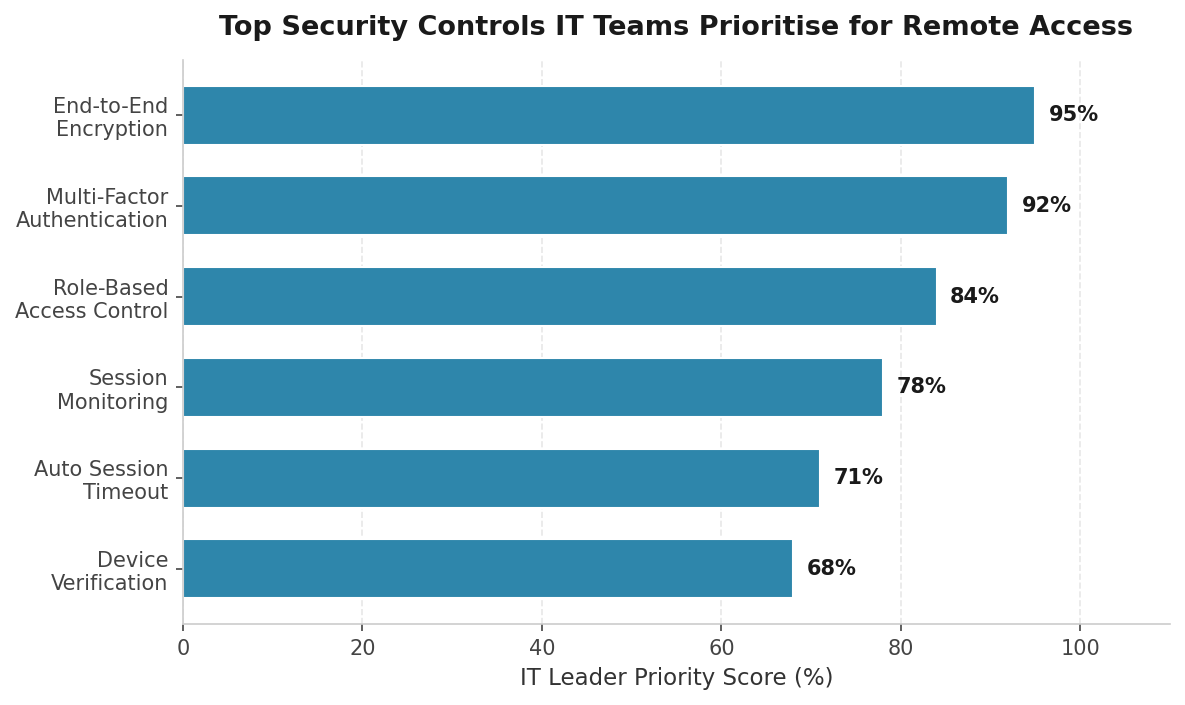
Source: Aggregated security priority data from Microsoft Entra MFA research, CISA guidance, and Duo Security 2024 trust report.
|
Warning Never expose RDP or SSH ports directly to the public internet without a gateway or zero-trust broker in front. Open ports get scanned constantly, and credential-stuffing begins within minutes. |
Step 4: Select Your Remote Access Software
Shortlist tools that fit your environment. Score each against five criteria rather than chasing the cheapest sticker price.
|
Criterion |
What to Check |
|
Security architecture |
Encryption standard, MFA support, audit logging, SOC 2 or ISO 27001 certification |
|
Cross-platform reach |
Windows, macOS, Linux, iOS, Android, and any thin clients in use |
|
Performance |
Frame rate at 4K, latency in low-bandwidth conditions, file transfer speed |
|
Management features |
Central console, user groups, granular permissions, bulk deployment |
|
Total cost of ownership |
Per-user or per-device pricing, support tier, infrastructure overhead |
Trial at least two products with a small pilot group before committing. A vendor’s polished demo rarely matches a real corporate network.
Step 5: Roll Out in Phases
Big-bang deployments fail loudly. A phased rollout catches problems while they are still small.
|
Pro Tip Treat your help desk as a sensor. If onboarding generates more than two tickets per user, your documentation needs work before the next wave. |
Step 6: Document Everything in a Runbook
If only one person knows how to onboard a new employee, you have a single point of failure. A runbook turns tribal knowledge into something repeatable. Cover these in plain language:
- How to request remote access (form, approver, expected turnaround)
- Step-by-step install for each supported device (Windows, macOS, mobile)
- How to enable MFA and recover access if the second factor is lost
- Troubleshooting checklist for slow sessions, frozen screens, and login failures
- Offboarding for departing employees, including session termination and licence reclaim
Step 7: Audit, Monitor, and Improve
Remote access is an operating capability, not a launch project. Build a recurring review into the calendar.
Quarterly Audit Checklist
- Review every active account. Disable any that have not logged in for 60 days.
- Verify MFA is still enforced for every user (look for exceptions that crept in).
- Spot-check session logs for unusual locations, times, or volume.
- Confirm patch levels on the remote access agent and host operating systems.
- Re-run the user inventory and remove people who changed roles or left.
|
Only 64% of organisations have fully deployed MFA across all accounts, and among small businesses the figure drops below 30%. The gap is mostly inertia, not budget. |
Common Pitfalls to Avoid
- Sharing logins: Even one shared account undermines every other control.
- Skipping offboarding: Dormant accounts of ex-employees are a favourite target for attackers.
- Exempting executives from MFA: Senior accounts are the most attractive prize, not the exception.
- Forgetting personal devices: If staff connect from their own laptops, require current OS, disk encryption, and a screen lock.
|
Warning Roughly 42% of organisations reported a successful phishing or social-engineering attack in the past year, according to PwC’s 2026 Global Digital Trust Insights. Train your team to spot fake login prompts. |
Frequently Asked Questions
How long does it take to set up remote access for a small team?
A team of 10 to 25 people can usually be running on a polished remote desktop product within one to two weeks. Most of that time goes to inventory, policy, and a short pilot.
Is a VPN enough on its own?
A VPN protects the connection but does not control which devices connect or what they can reach. For most teams, pairing remote access software with MFA and role-based controls gives better security with less administrative overhead.
Do remote workers need company-issued laptops?
Not always. Many organisations support bring-your-own-device, provided the device meets minimum standards: a current operating system, full-disk encryption, an active screen lock, and approved security software.
How often should remote access permissions be reviewed?
Run a full audit every quarter at minimum. Also trigger a review whenever someone changes role, leaves the company, or returns from extended leave. Regular small reviews beat annual clean-ups.
What is the difference between remote access and remote control?
Remote access is the broad category of connecting to a system from another location. Remote control is one mode, where the user actively drives the remote machine’s screen, keyboard, and mouse.
Wrapping Up
A solid remote access rollout is less about the magical tool and more about working through the seven steps in order: choose the method, inventory users and devices, lock down security, pick software, pilot it, document the runbook, and audit quarterly. Teams that follow this sequence get fewer tickets, faster onboarding, and a smaller attack surface. Start with the boring parts first.
References
Bureau of Labor Statistics, American Time Use Survey, 2025 — https://www.bls.gov/news.release/atus.nr0.htm
Microsoft Research, How effective is multifactor authentication at deterring cyberattacks?, 2023 — https://www.microsoft.com/en-us/research/publication/how-effective-is-multifactor-authentication-at-deterring-cyberattacks/
Yomly, 50+ Remote Work Statistics 2026 — https://www.yomly.com/remote-work-statistics/
Vena, Remote Work Statistics and Trends for 2026 — https://www.venasolutions.com/blog/remote-work-statistics
CISA, Turn On Multifactor Authentication, 2025 — https://www.cisa.gov/secure-our-world/turn-mfa